.png?width=250&height=79&name=foundryzcashpool_logo_inverse%20(2).png)
The Sub-Account Reports feature enables users to export data from multiple sub-accounts at once. These exports are fully customizable, so you can export data from all sub-accounts in your group(s) or a subset of those sub-accounts.
Using Sub-Account Reports: Viewing Report data
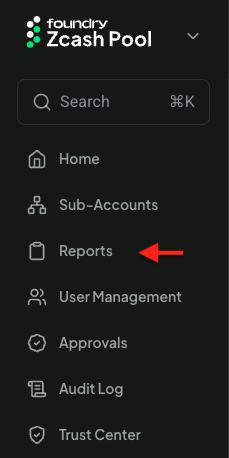
- The Sub-Account Reports view can be accessed using the side navigation menu's Reports item:
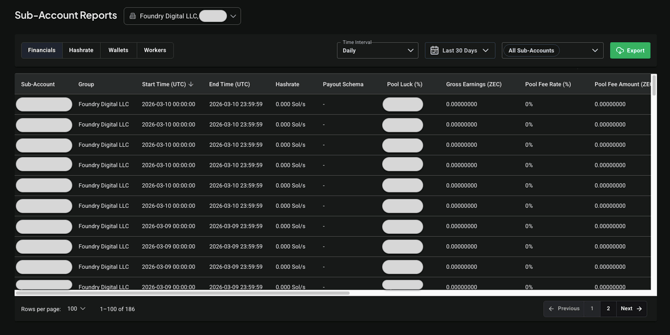
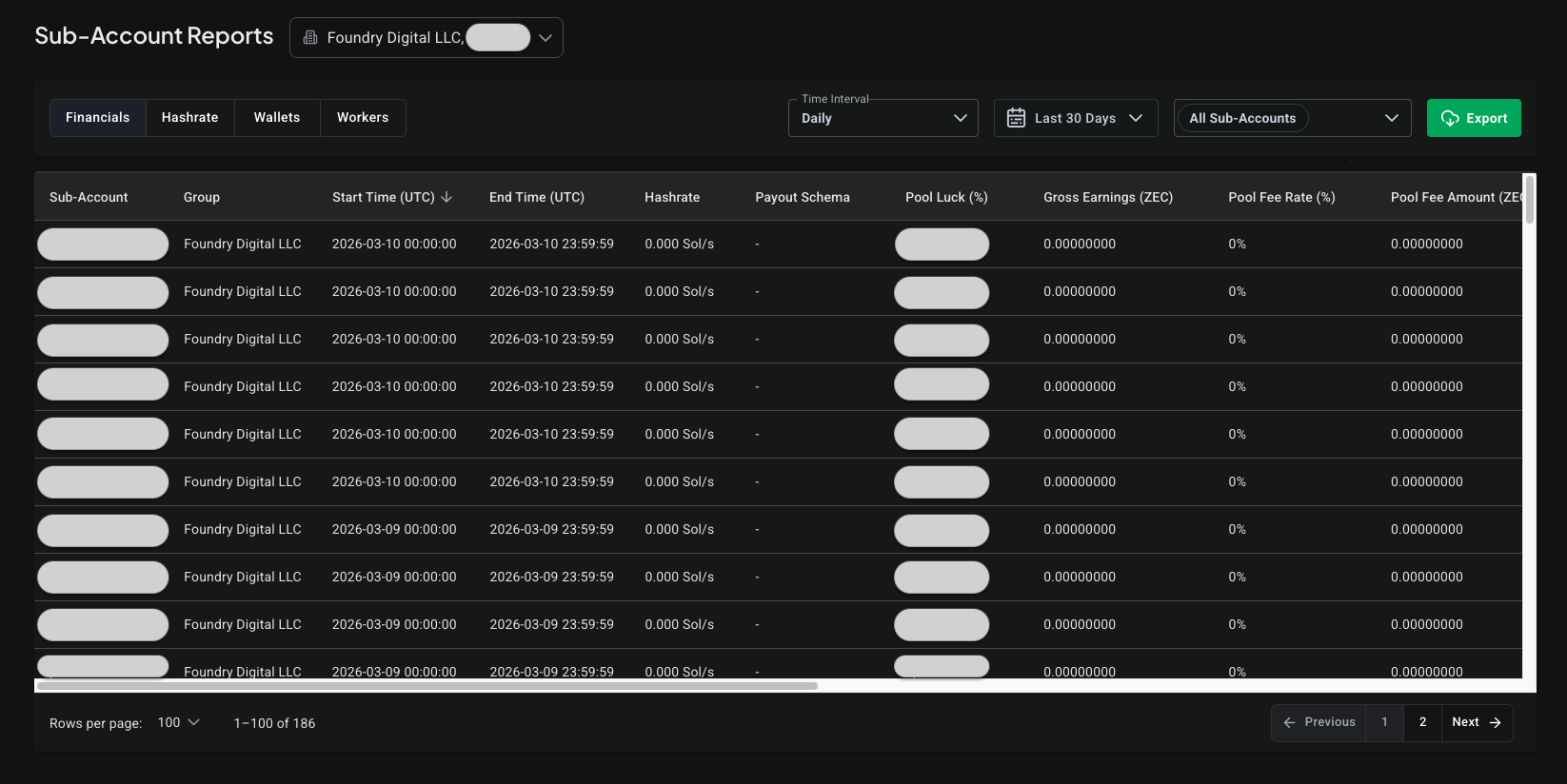
- The feature has navigation tabs to view tables for four different types of sub-account data: Financials, Hashrate, Wallets, and Workers:
Using Sub-Account Reports: Filtering Report data
- There are multiple ways to filter the data in these Report tab views, you can do it by: Group (if your account has access to multiple groups), Sub-Account, Date Range (NOTE: Not available in Wallets tab), or Time Interval (NOTE: Only available in Financials and Hashrate tabs)
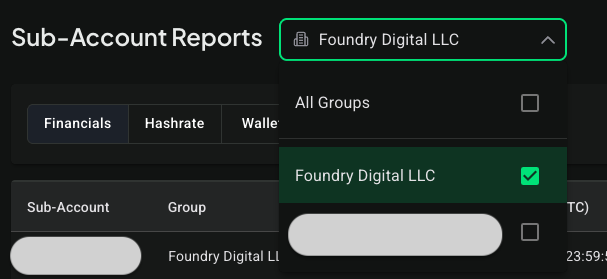
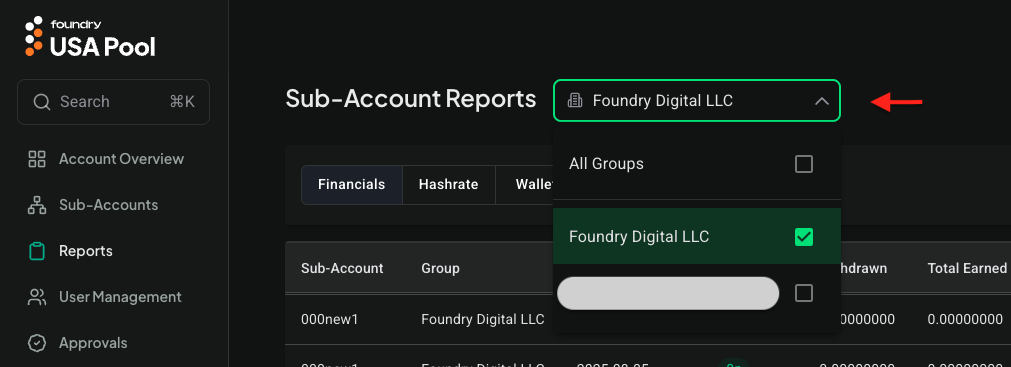
- If your account has access to multiple groups, through multi-group per user feature, you can use the selected group dropdown to display or hide the sub-accounts of the groups:
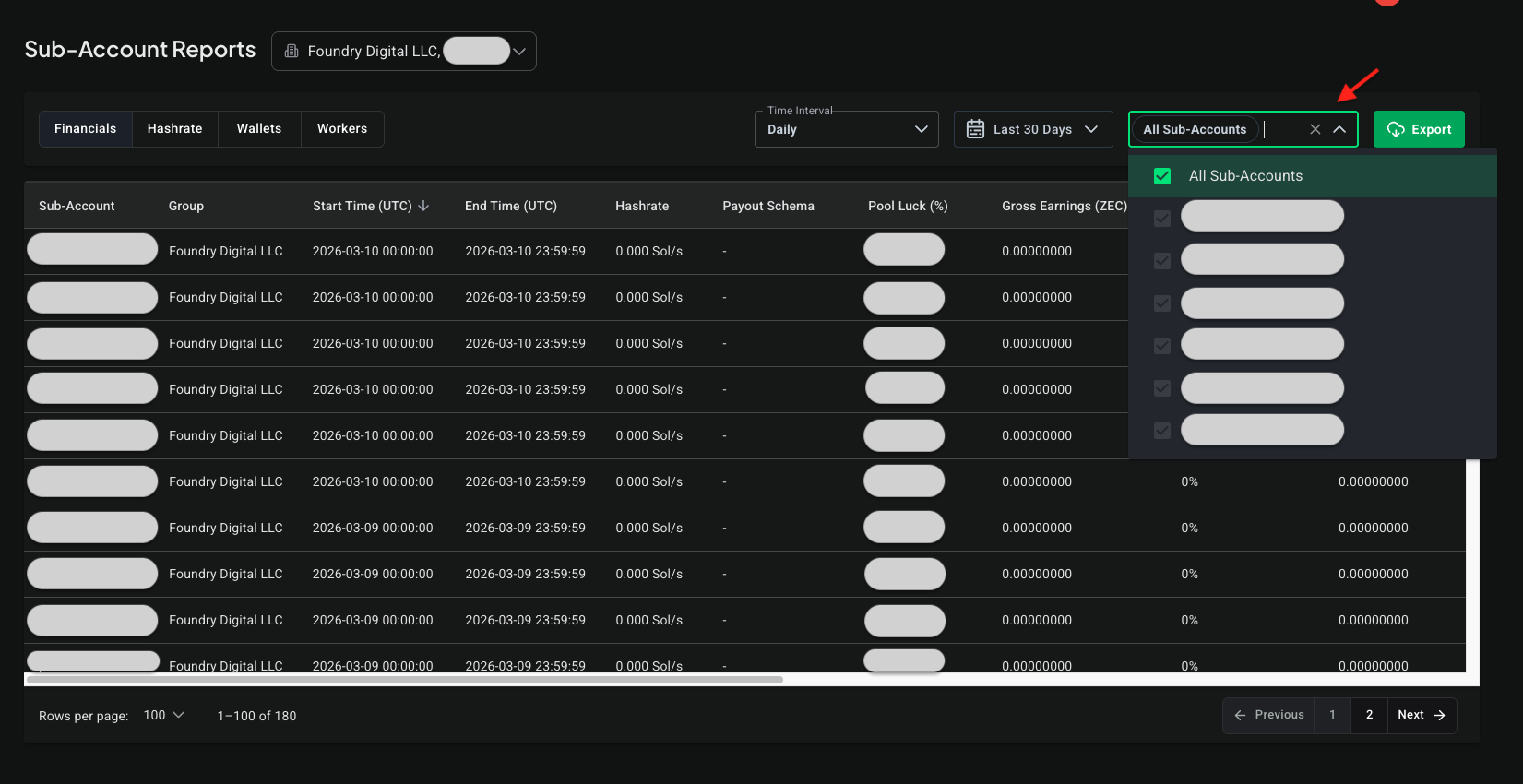
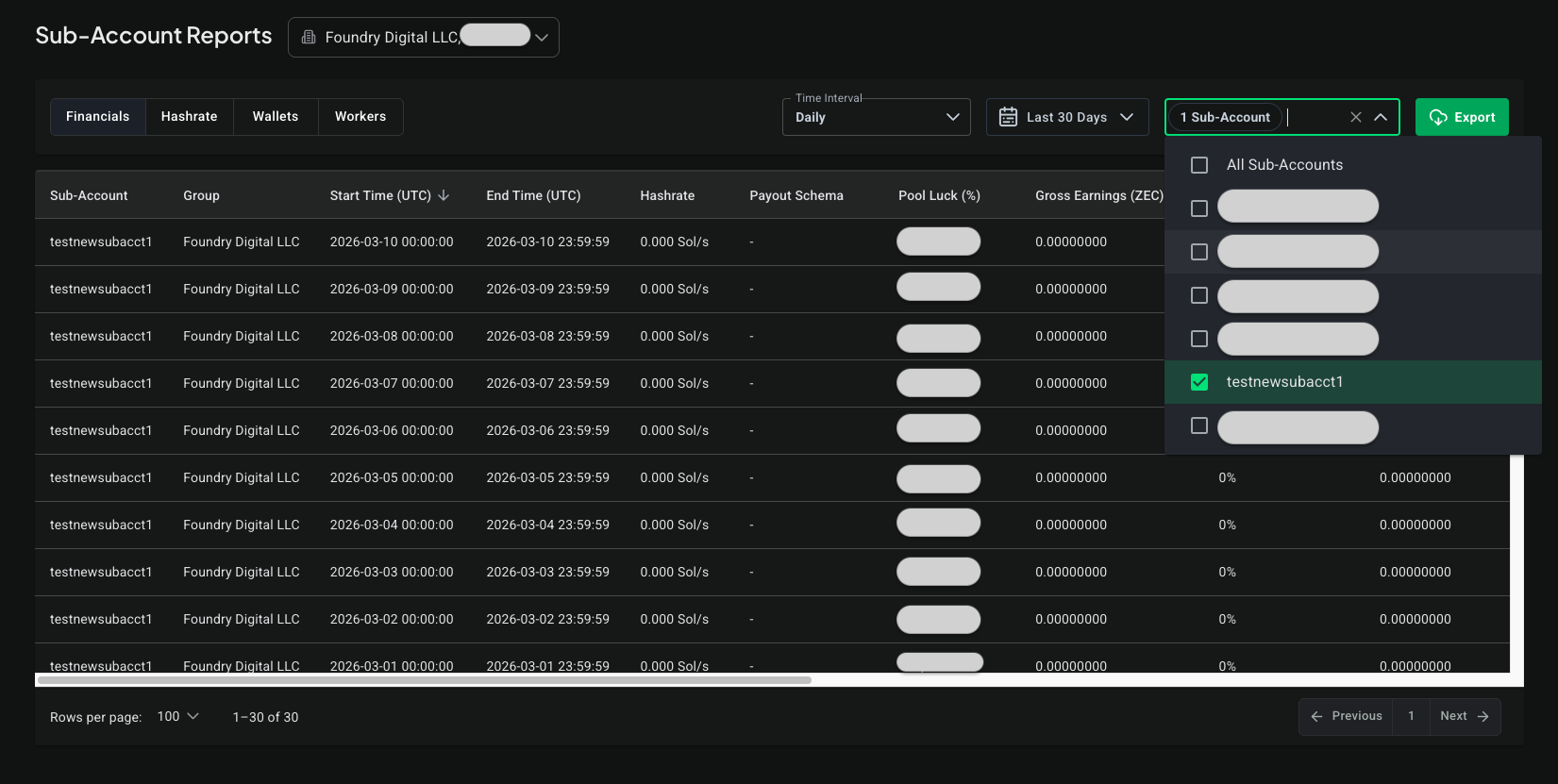
- You can update which Sub-Accounts are displayed using the Sub-Accounts dropdown filter. This filter allows you search and select which Sub-Accounts' data you want to view and/or export:
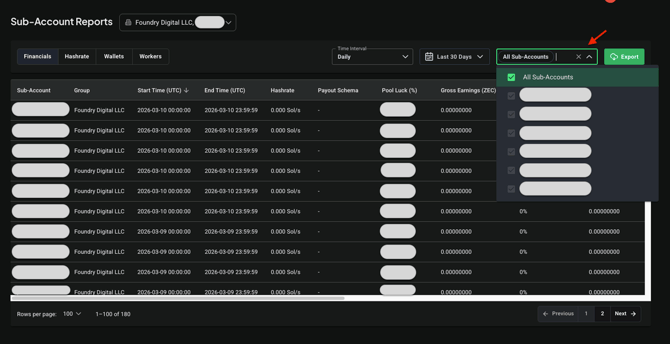
- At least one sub-account in the dropdown must be selected to return data
Ex.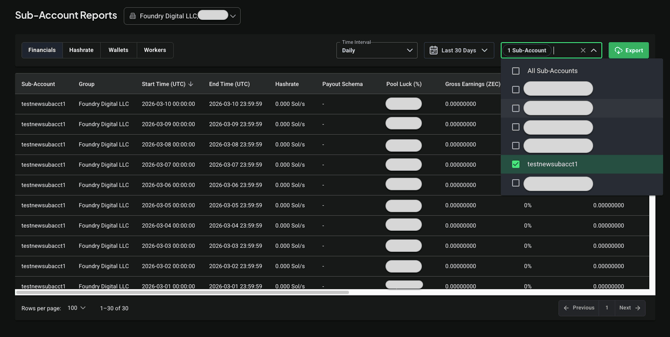
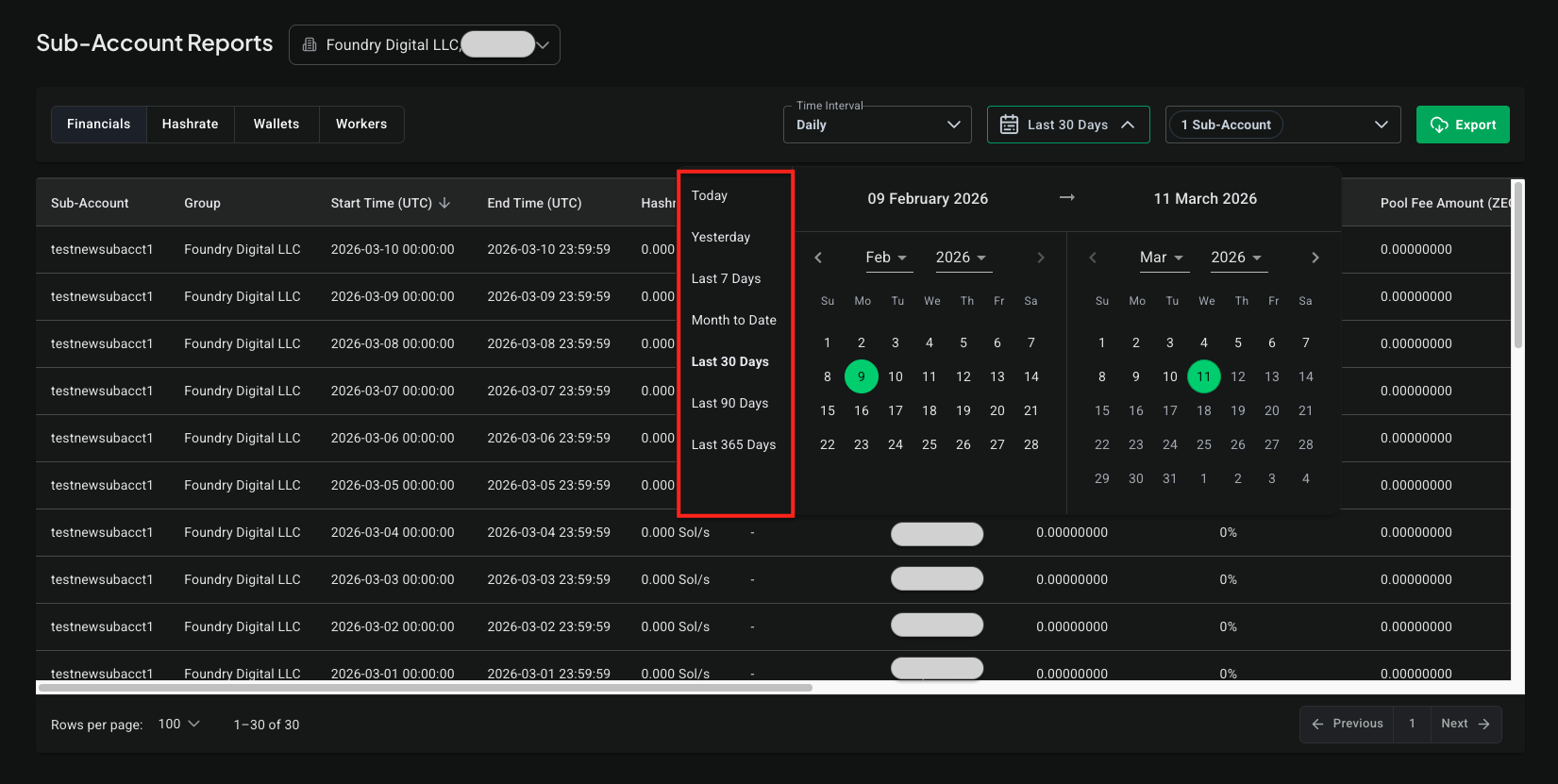
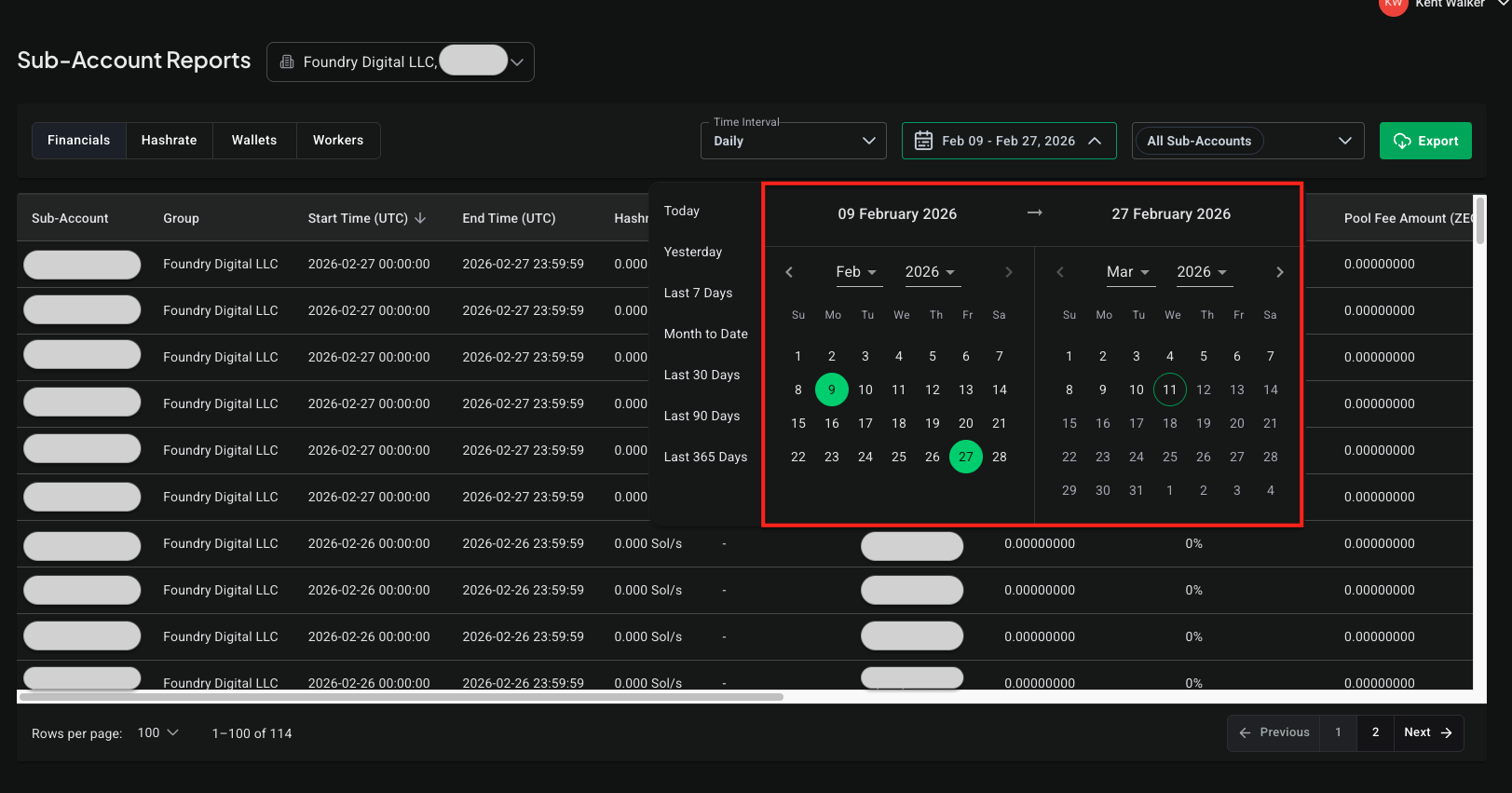
- The Date Range picker allows you to pick a pre-defined quantity of dates, using the menu on the left-side of it or you can select custom range of dates by selecting a Start and End Date using the calendars:
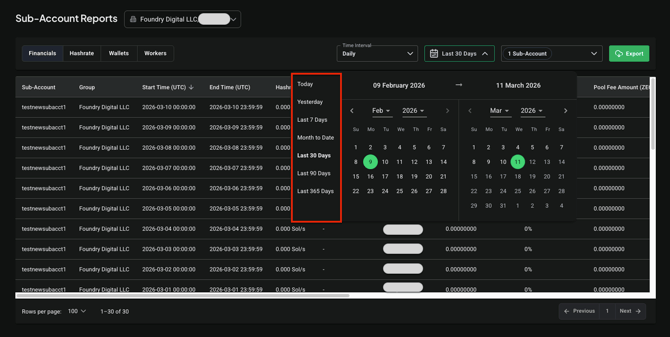
- To select a Start and End Date, you just click on the dates and you can click the same date twice to get data from just that date:
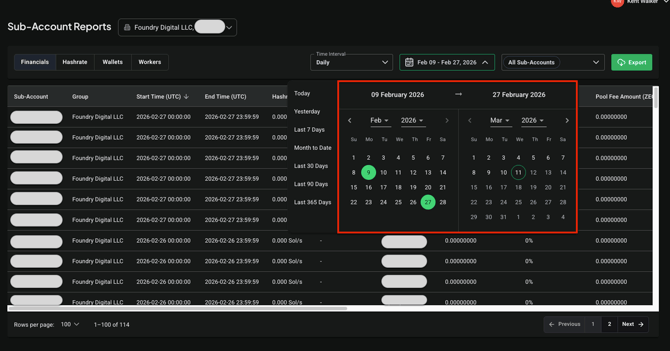
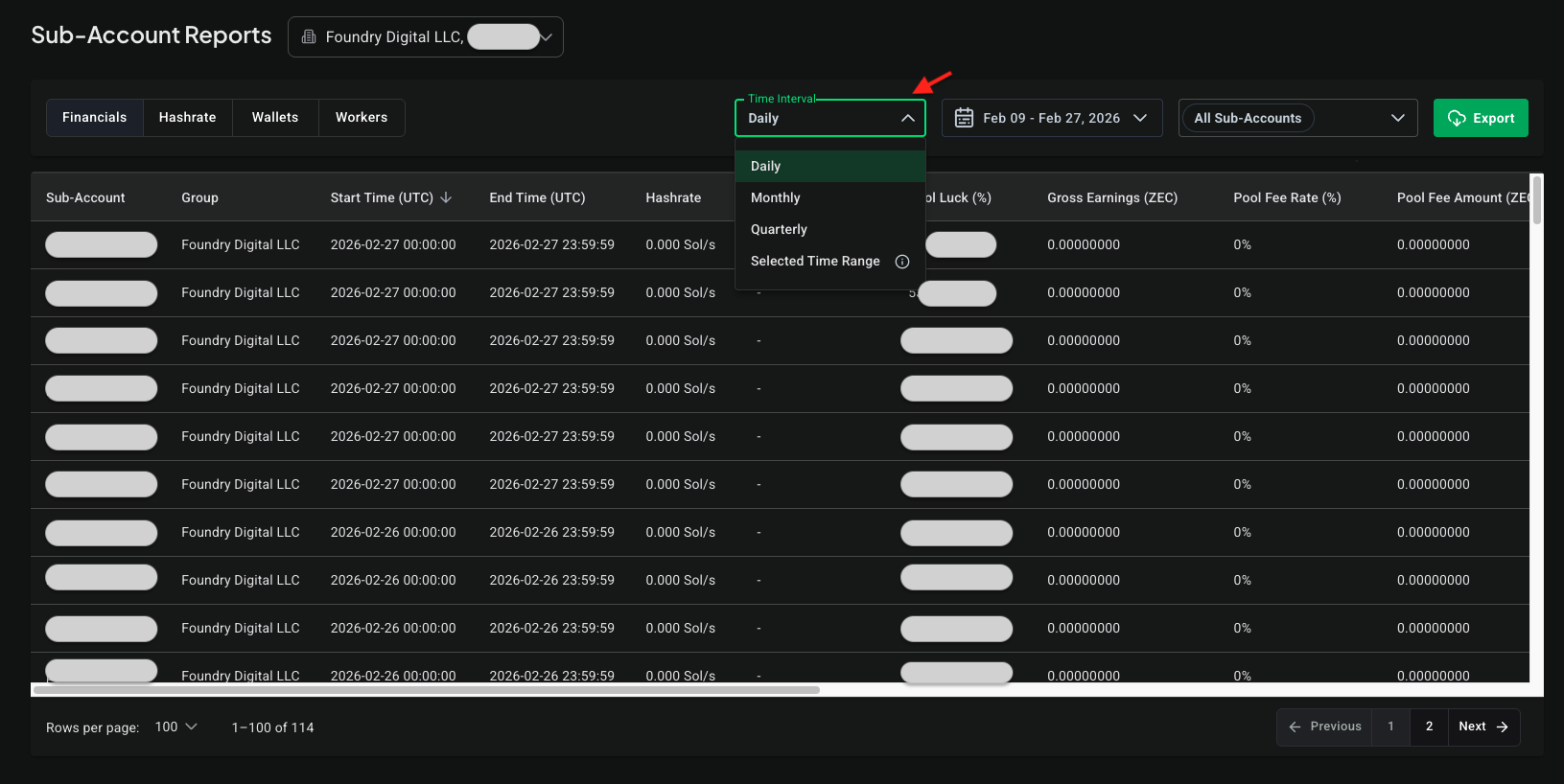
- The last filter in the view is the Time Interval dropdown which allows you to aggregate data based on the selected interval (NOTE: This feature is only available in the Financials and Hashrate Report tabs). The default option is "Daily", gives the selected sub-account(s) stats for each day in the currently selected date range.
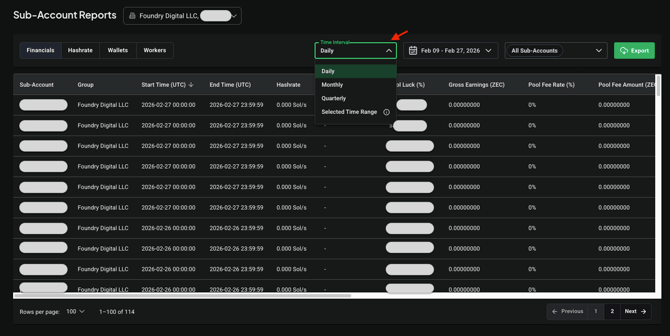
- The other options which are: Monthly, Quarterly, and Selected Time Range. Monthly and Quarterly will aggregate sub-account data into the number of months or quarters that the currently selected dates span.
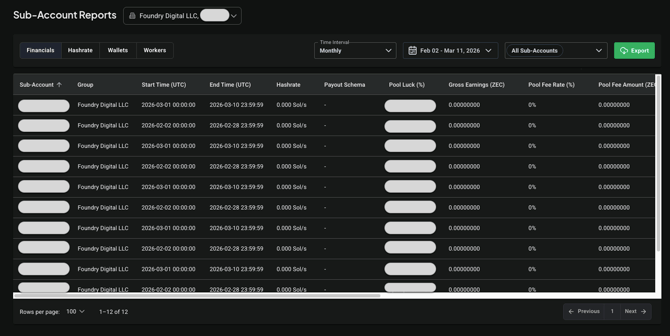
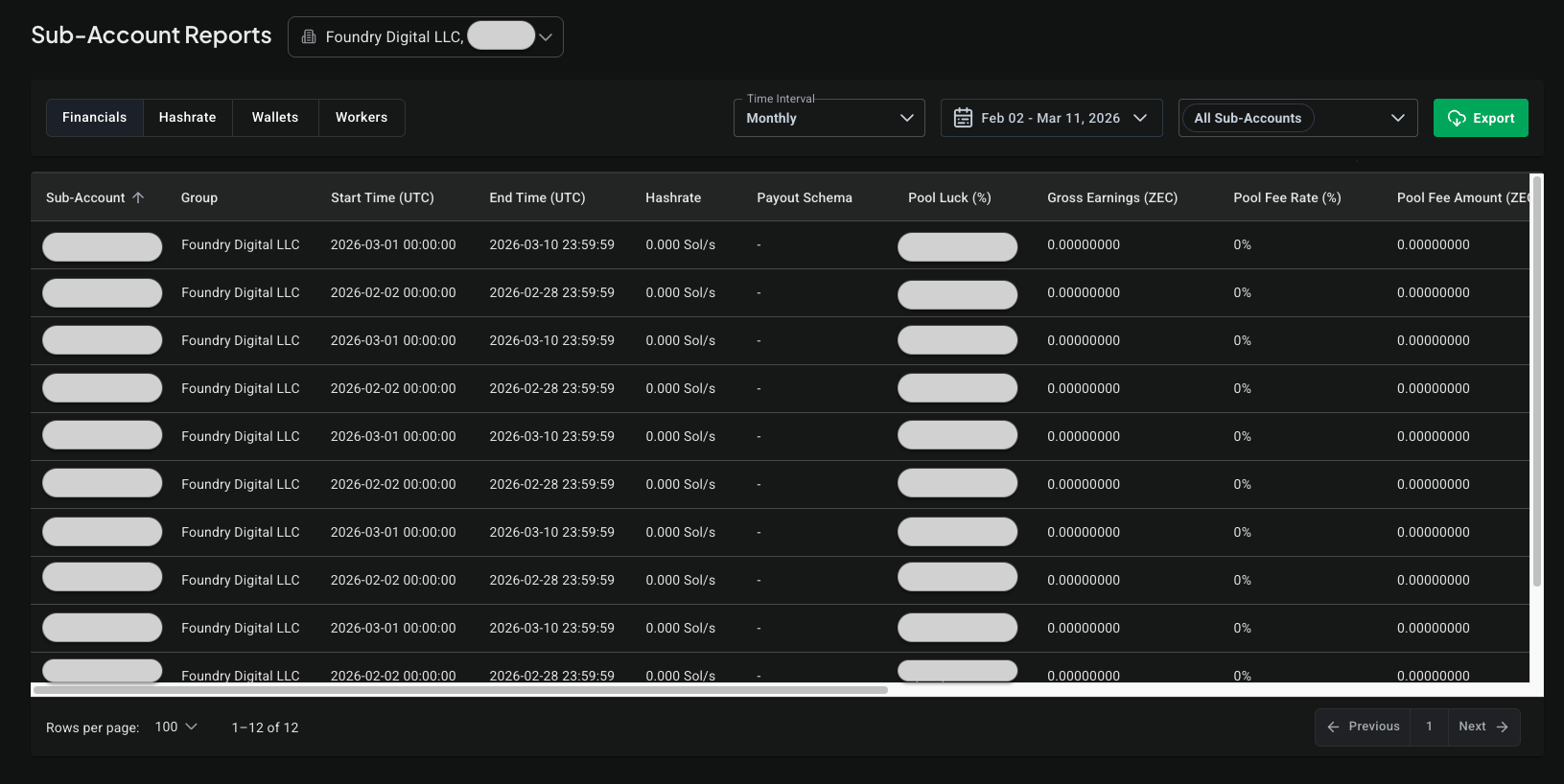
- For example, if you select a date range that spans multiple months, like in this example for February 2nd 2026 to March 11, 2026, and select the Monthly time interval, you'll get two rows of data for each of the selected sub-accounts because each row represents a month of aggregated data. One row will aggregate data for February's dates and the other row aggregates based on the dates in the selected range that fall in March:
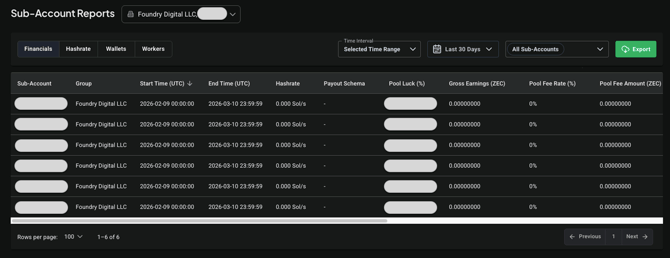
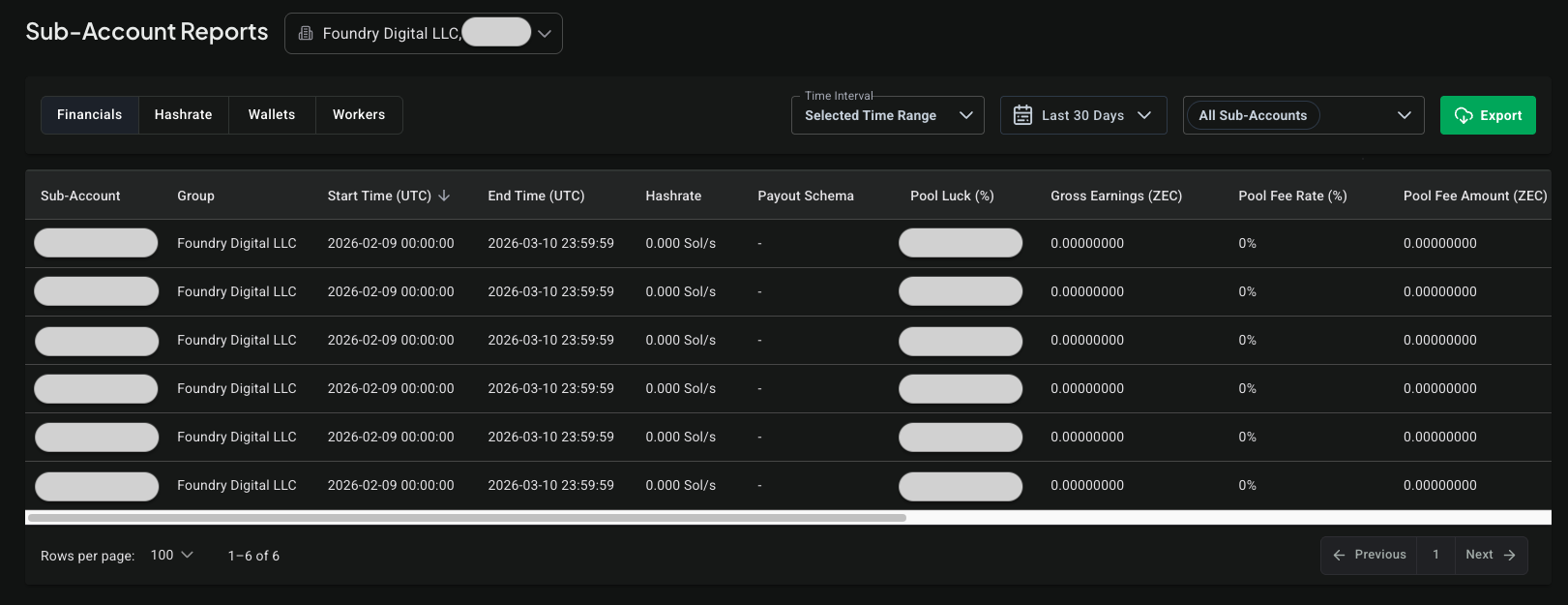
- The Selected Time Range option aggregates data into one row per sub-account and each row will have the aggregated sub-account data for the dates currently selected by the Date Range picker:
Note about archived sub-accounts: Archived sub-accounts are hidden from Reports and exports. If a sub-account is missing from your Financials/Hashrate results or totals don’t match historical downloads, check whether the sub-account was archived. Unarchive it to include its data in the report/export, then re-archive if desired.
Using Sub-Account Reports: Exporting Report data
- Once you've filtered the Reports' tab to get the data you need, you can export it to a file using the Export button located in the top-right part of the view:

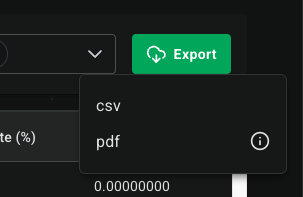
- When you click the Export button on the Hashrate, Wallets, and Workers' tabs, a CSV file will be exported containing the filtered data and on the Financials tab, a menu will be displayed allowing you to export the data as a CSV or PDF file: