.png?width=250&height=79&name=foundryzcashpool_logo_inverse%20(2).png)
The archive sub-account feature is a tool for removing inactive sub-accounts from the main Sub-Accounts' list , i.e. sub-accounts that don't have a balance and haven't produced hashrate for the last 24 hours or longer.
Using archived sub-account feature: Archiving a sub-account
- To archive a sub-account, navigate to the Sub-Accounts view and select a sub-account from the list in the "Active Sub-Accounts" tab that has a 1 hr Hashrate average of zero and zero active workers such as the sub-account testnewacct shown in the screenshot below:
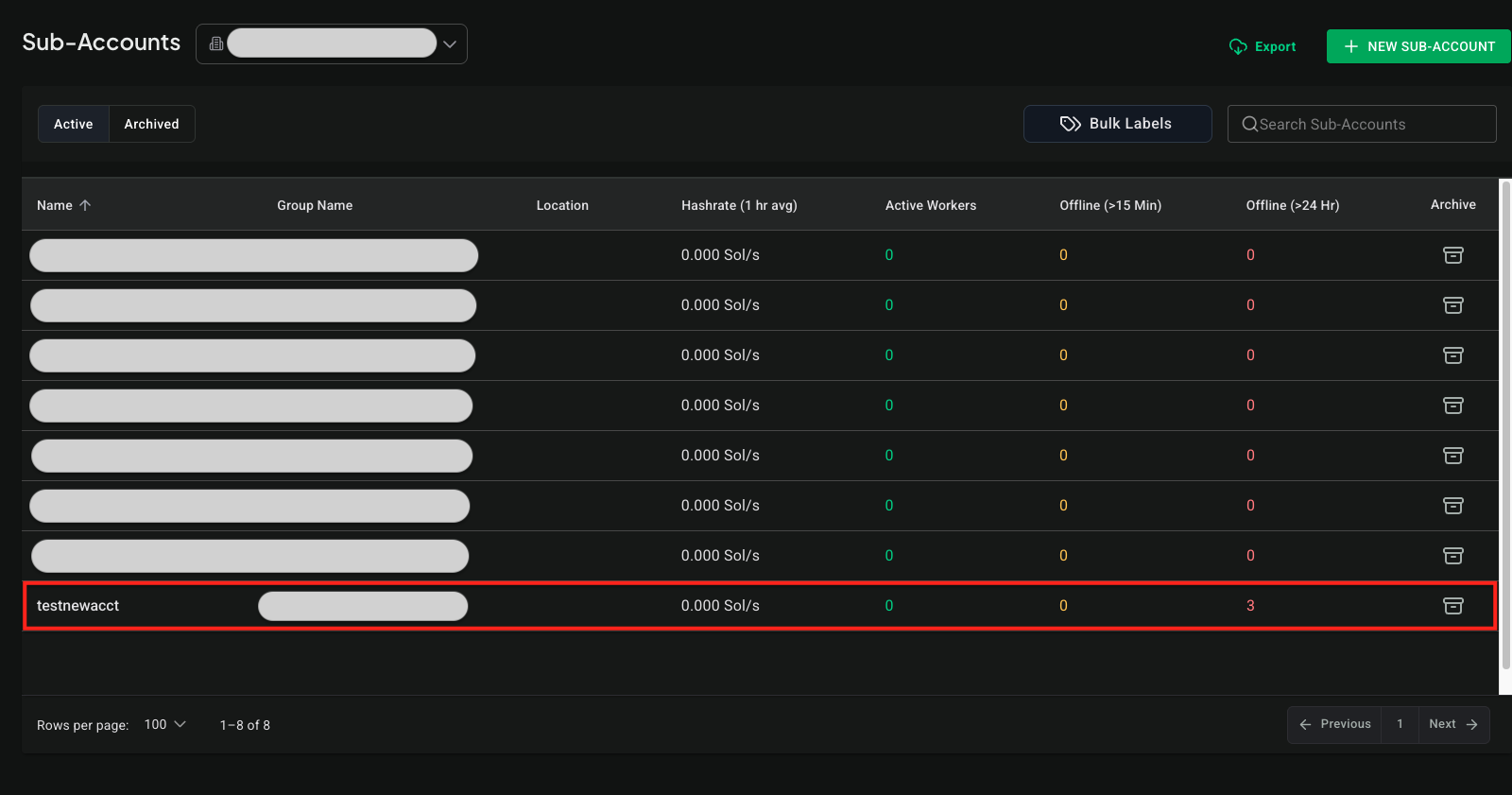
- Click on the sub-account's name to navigate to its detail view
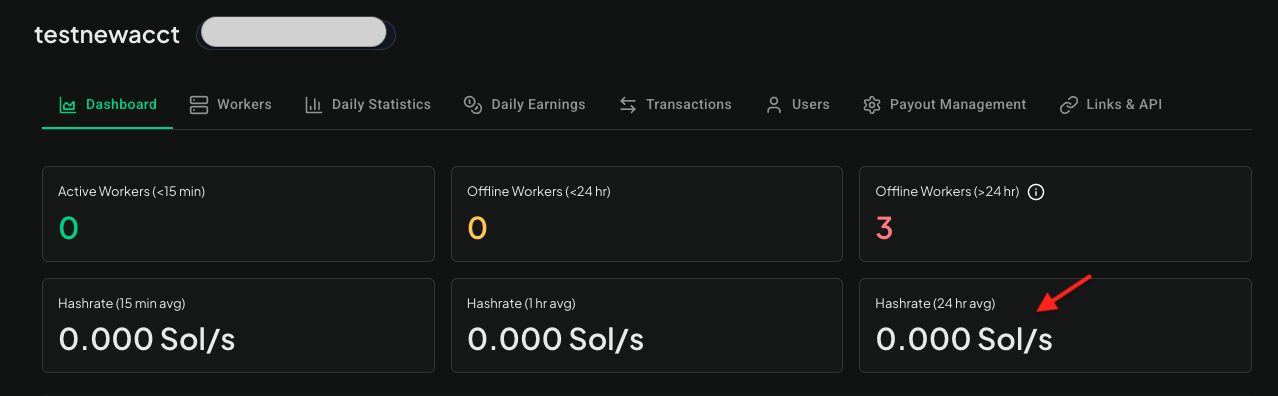
- On the Dashboard, verify the 24 hour hashrate average for the selected sub-account is also zero as shown for testnewacct's dashboard here:
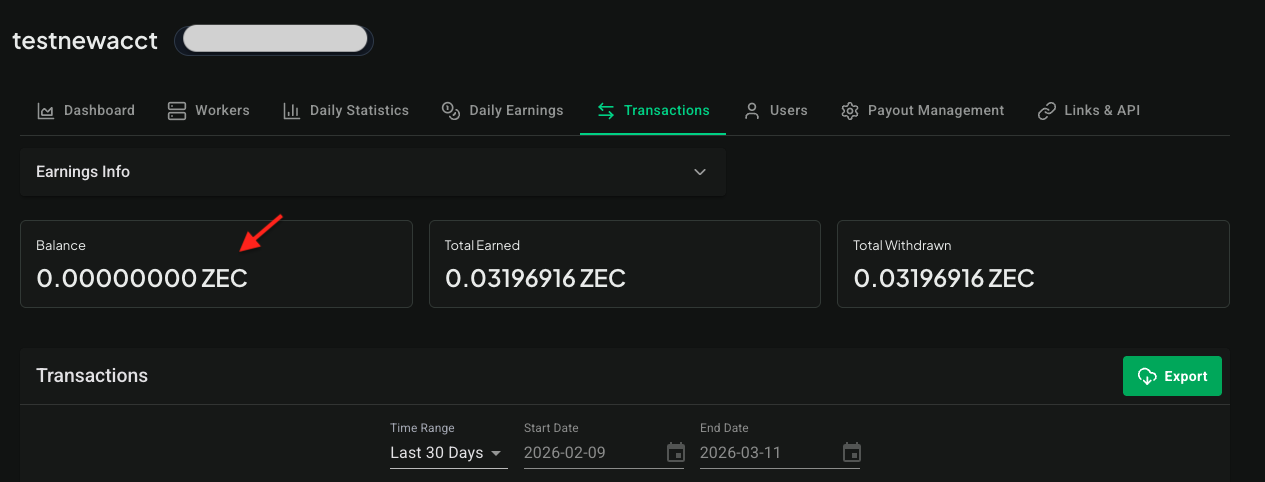
- Next, select the Transactions' tab and confirm the balance of the sub-account is zero.
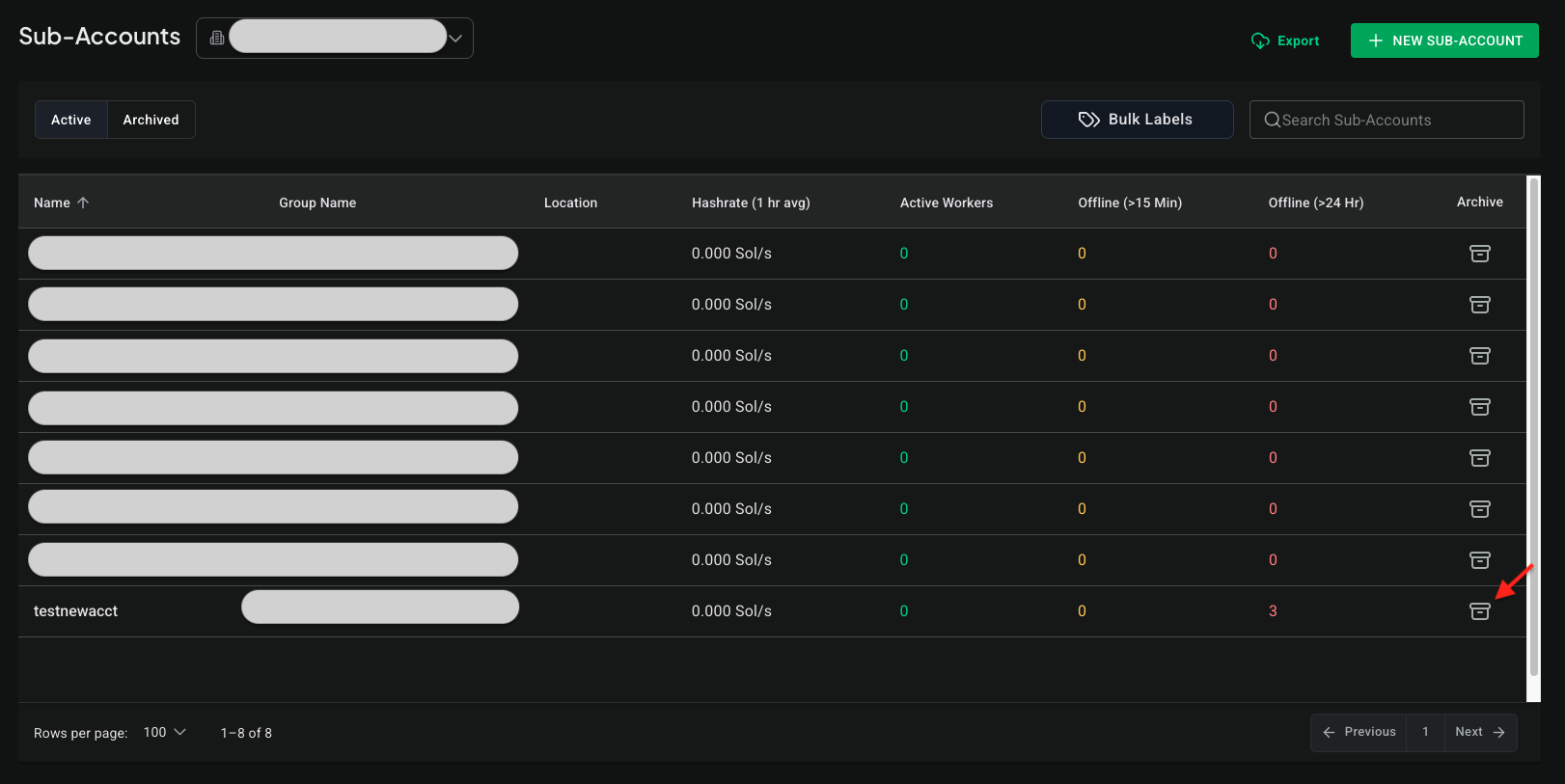
- Once you've confirmed the balance and the hashrate (24 hour average) are both zero, navigate back to the Sub-Accounts' view and click on the "Archive" button next to the sub-account you want to archive:
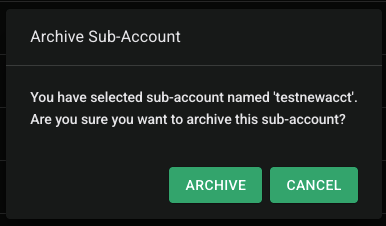
- Let's demonstrate this by archiving sub-account testnewacct. When we click the "archive" button, a confirmation dialog will appear:
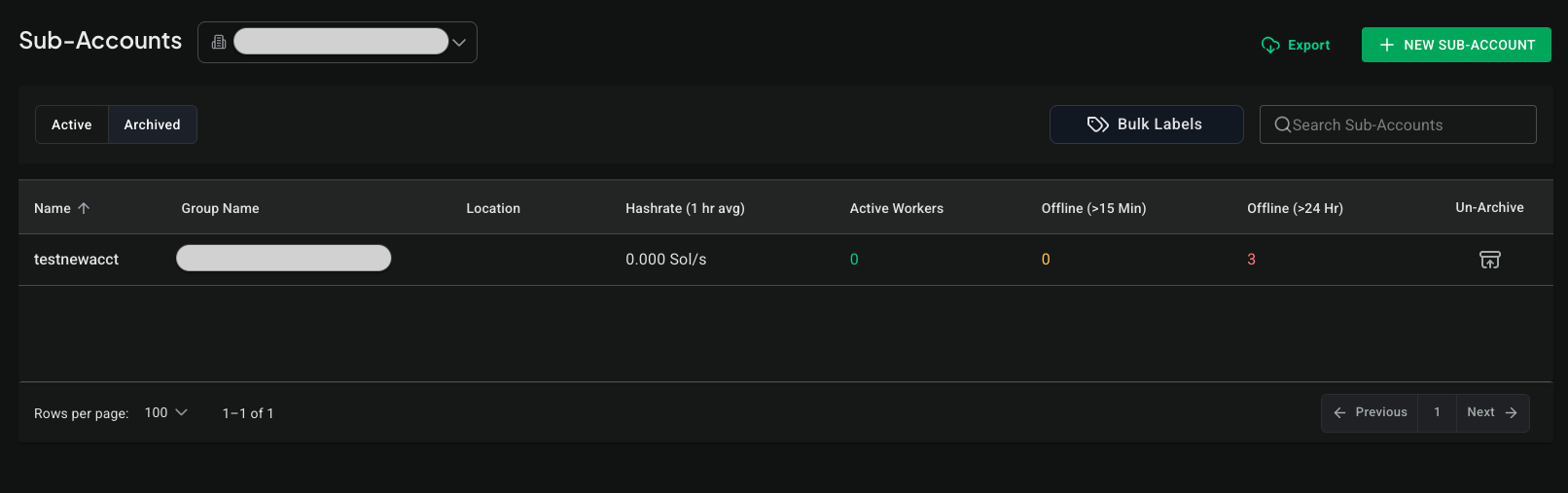
- A "success" snackbar should be displayed if the archive action was successful and if you switch to the "Archived Sub-Accounts" tab, you'll now see the sub-account testnewacct listed here instead of in the "Active Sub-Accounts" tab:
Using archive sub-account feature: Unarchiving a sub-account
- You can unarchive a sub-account by simply navigating to the Archived Sub-Accounts tab, selecting the sub-account you wish to unarchive and click the Unarchive button.
- We'll demonstrate unarchiving using the same sub-account that we just archived: testnewacct
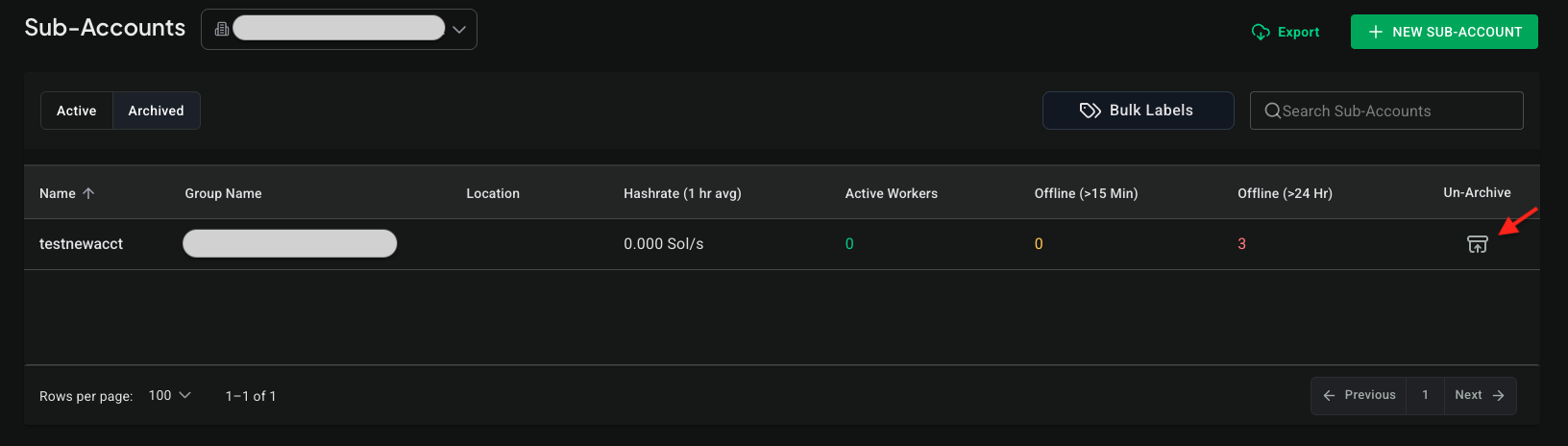
- Click the unarchive button located in the "Un-Archive" column, in the row displaying the data for sub-account testnewacct:
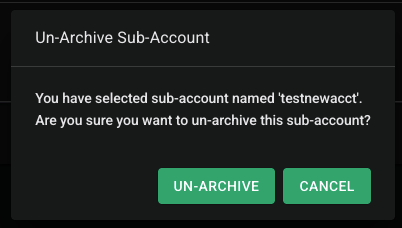
- You'll again be prompted to confirm the action with a dialog. If you wish to continue, click "Un-Archive"
- Again, you should see a "success" message when the sub-account is unarchived successfully and when you switch to the "Active Sub-Accounts" tab, you should now see your unarchived sub-account in the list.
Reporting visibility: While archived, a sub-account is excluded from Reports/exports. Unarchive to include it in new report runs.
Accessing Data from Archived Sub-Accounts
You do not need to unarchive a sub-account to access its historical data and reports. Archived sub-accounts retain full access to all historical information and reporting capabilities.
What You Can Access
When a sub-account is archived, you can still:
-
Review Historical Data - Click on any archived sub-account to view:
-
Past hashrate data
-
Transaction history
-
Daily earnings
-
Daily statistics
-
Worker history
-
All other historical metrics
-
-
Export Reports - Export Daily Stats and other reports directly from archived sub-accounts
How to Access Archived Sub-Account Data
-
Navigate to the Sub-Accounts view
-
Click on the "Archived Sub-Accounts" tab
-
Click on the name of the archived sub-account you want to review
-
Access any statistics, reports, or historical data as you would with an active sub-account
All standard viewing and export features work exactly the same for archived sub-accounts as they do for active ones.
Functional Differences for Archived Sub-Accounts
The only functional difference for archived sub-accounts is that the stratum server will not accept new shares from them. This means:
-
Workers cannot connect and mine to archived sub-accounts
-
No new hashrate will be recorded
All other functionality—including data access, reporting, and historical analysis—remains fully operational without requiring you to unarchive the sub-account.