.png?width=250&height=79&name=foundryzcashpool_logo_inverse%20(2).png)
What the sub-account role management feature enables for Foundry Zcash Pool members:
-
Gain the ability to manage users at the sub-account level (instead of group account level).
-
A user who is part of a group account with 2 sub-accounts could be provisioned to a single sub-account (rather than both).
-
-
Manage and customize user roles at the sub-account level (instead of a group account level).
-
A user can hold different user roles (accountant, technician, or sub-account owner) in sub-accounts they have access to (instead of having the same role across all sub-accounts).
-
- Pool members can setup their sites as individual sub-accounts and ensure the staff operating on-site only have access to information from that specific site.
How to change an existing user's access within a specific sub-account
- Login with a user account that has Owner permissions
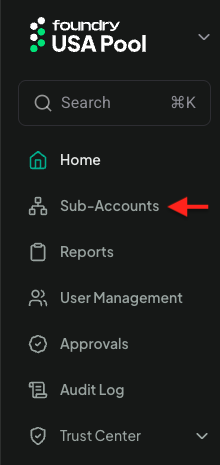
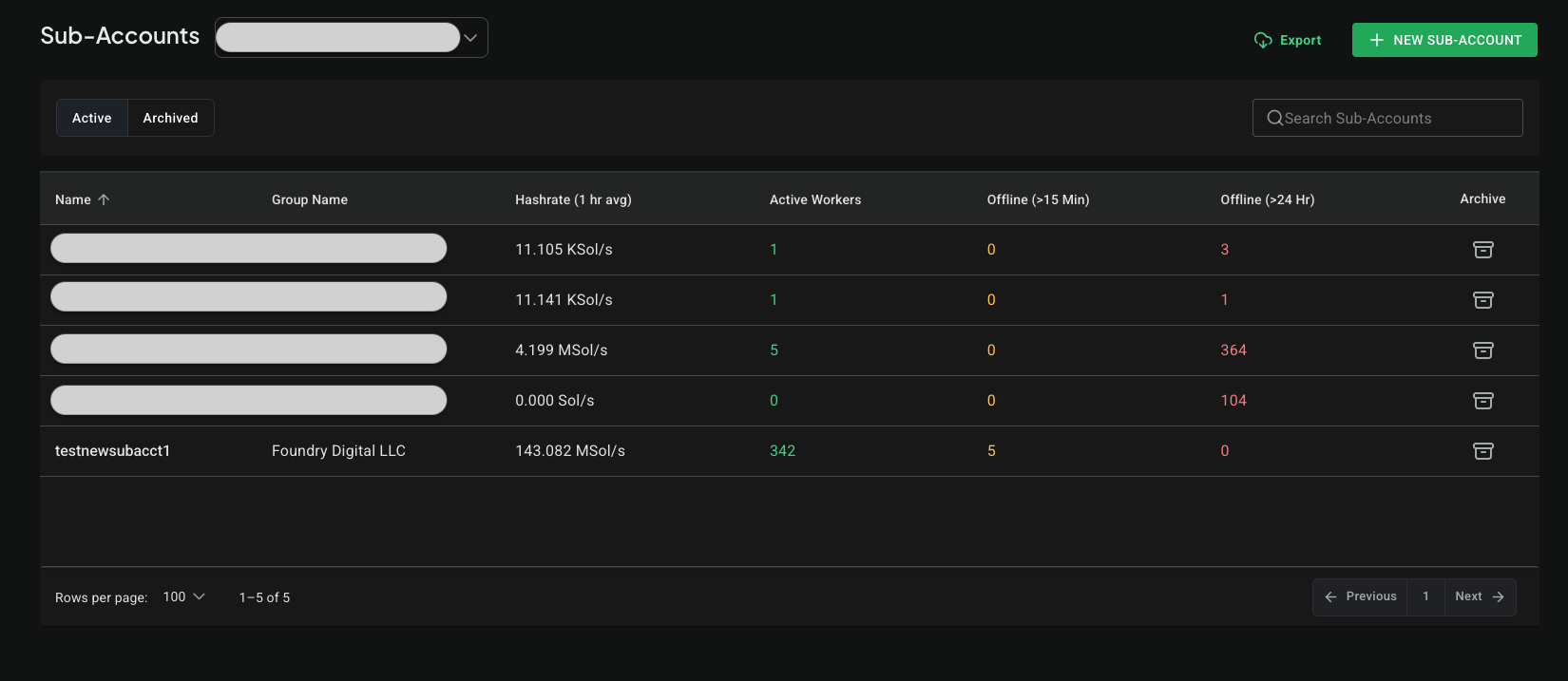
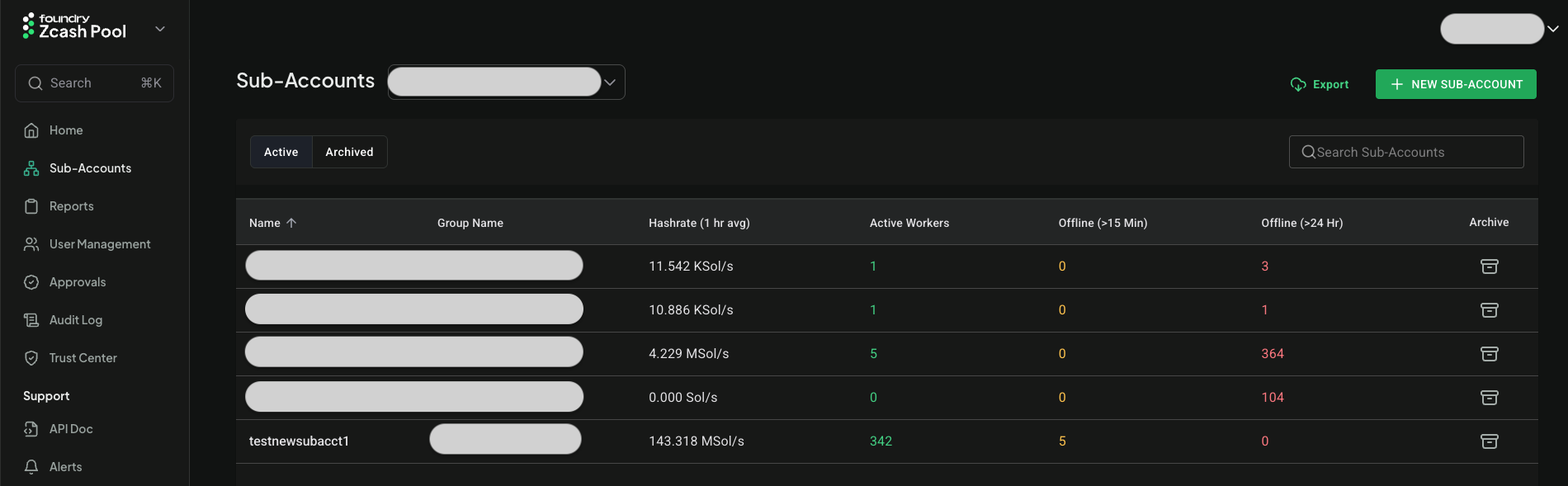
- Click the "Sub-Accounts" item in the side navigation menu
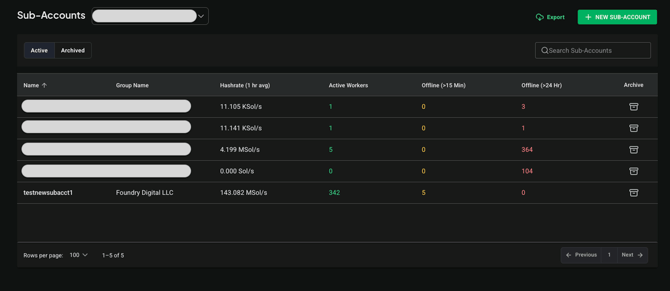
- Select the name of the sub-account you wish to change user permissions from the list
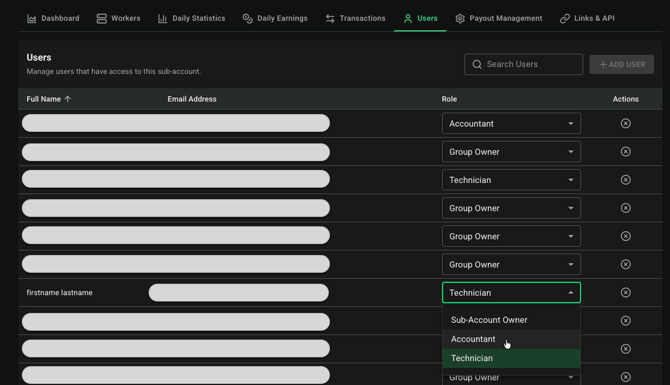
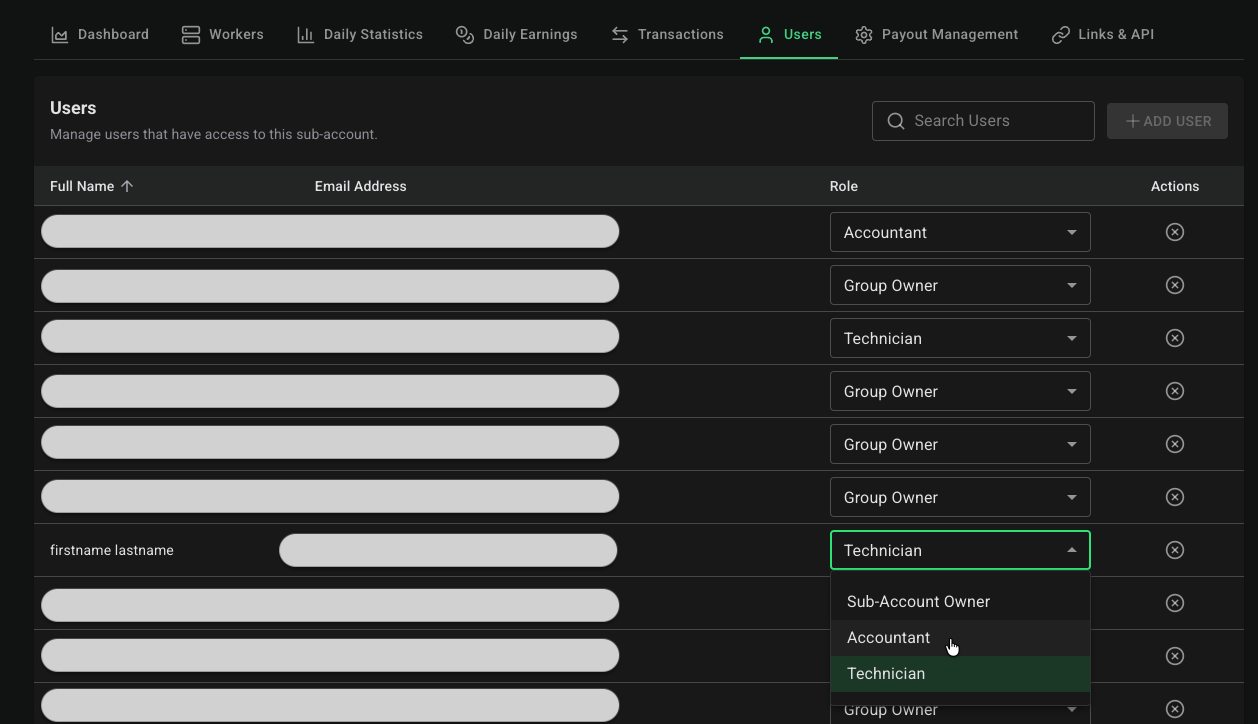
- After you've navigated to the detail view of the sub-account, select the Users' tab.

- Use the "Role" column dropdown menu to the right of the user's name to select their desired role. In the example below, we are changing the selected user's role from "Technician" to the "Accountant" role.
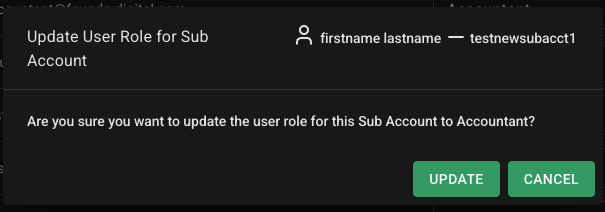
- Confirm the user role change for the user by clicking "Update".

Congratulations, you've successfully customized user access and permissions for the sub-account.
How to remove an existing user's access to a sub-account
- Login with a user account that has Owner permissions, navigate to the "Sub-Accounts" view using the side navigation menu, and select the sub-account from the list of sub-account that you want to remove a user's access to.
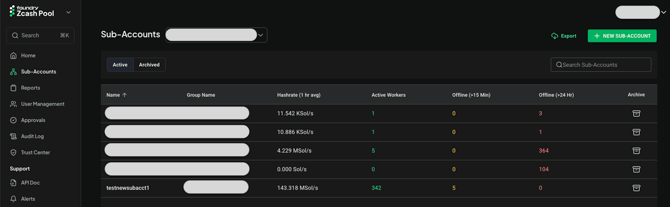
- After you've navigated to the detail view of the sub-account, select the Users' tab.
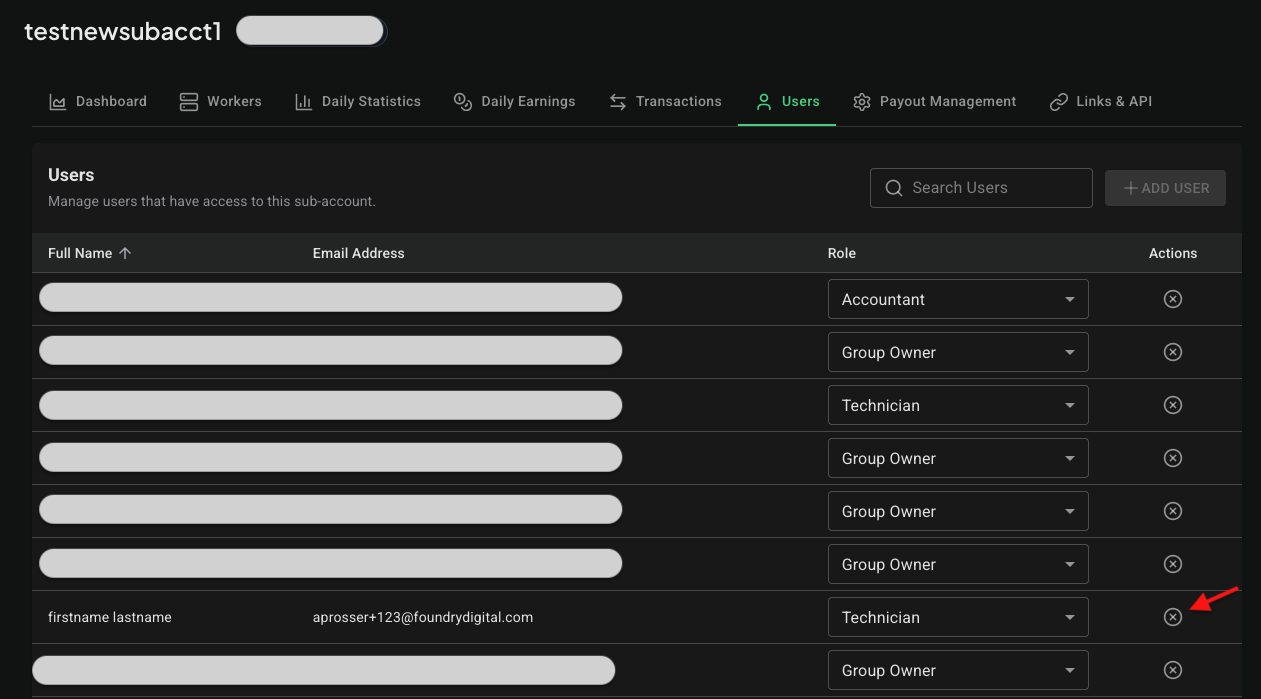
- In this example, we'll remove access to sub-account "01234" for the user named "John Doe" by clicking the "X" button located on the right side of the user's row:
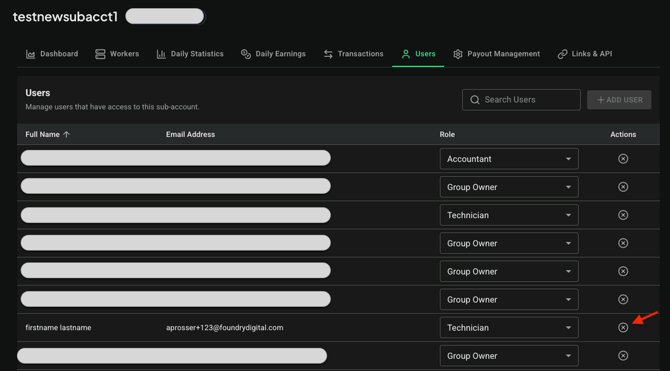
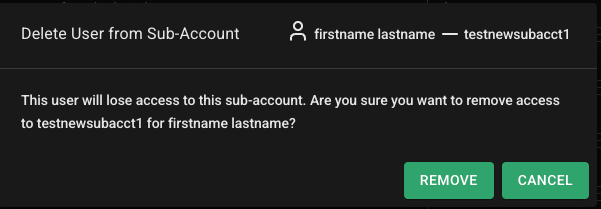
- To confirm you want to remove the user's access to the sub-account, click "Remove".
How to add or re-add an existing user's access to a sub-account
If an existing user doesn't have access to a sub-account because their access was removed or they weren't given access to the sub-account when it was created, you can use the Sub-Account - Users "Add User" feature to provide them with access to that sub-account.
- Login with a user account that has Owner permissions
- Select "Sub-Accounts" on the left-hand side navigation menu
- Click on the name of the sub-account you wish to provide an existing user with access to.
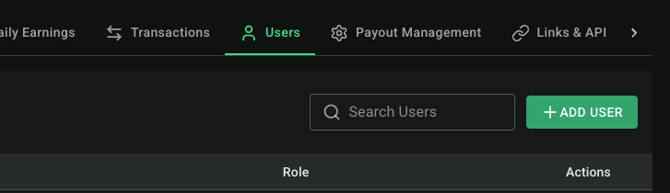
- In the sub-account detail view, select the "Users" tab and then click the "Add User" button:
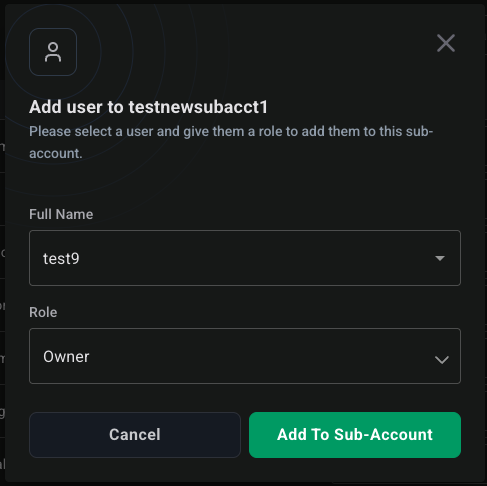
- The "Add User to Sub-Account" dialog should open and you can select which user you want to add to the sub-account and the role you want to give them, then click "Add to Sub-Account"
- Login with a user account that has Owner permissions
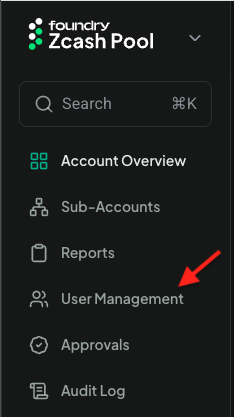
- Once logged in, navigate to "User Management" on the left-hand side menu.
-
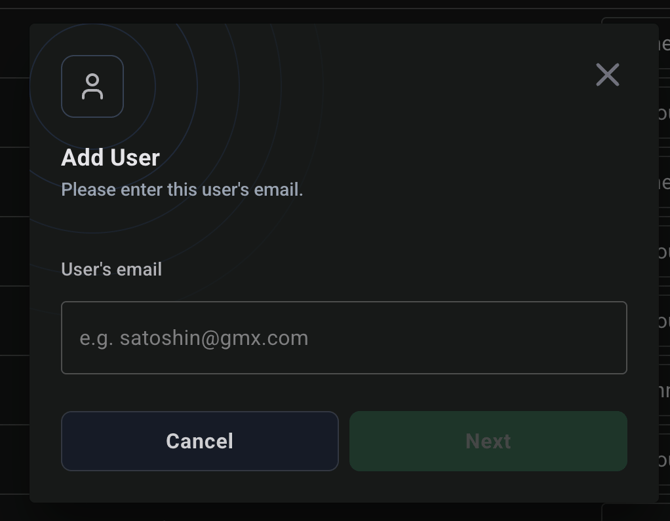
Click on "New User" and proceed to fill out the required form.
-
After inputing the email address of the new user, the app will check to see if this user already exists in the database, click "Next".
-
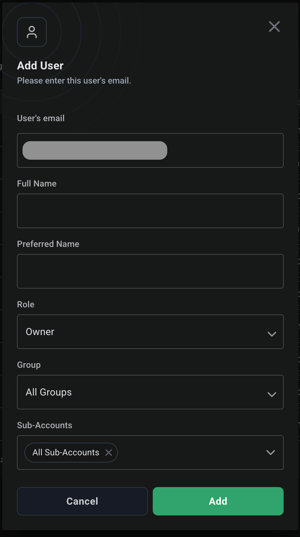
If the user does not exist in the database, a form will appear that will allow you to assign the groups and/or sub-accounts to which you want to assign the user.
-
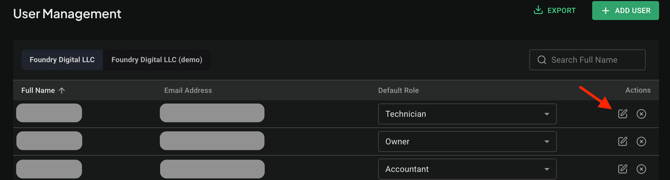
To add the user to a specific sub-account and assign a user role, Click on the Edit icon of the user you wish to edit. This allows you to customize their user role.
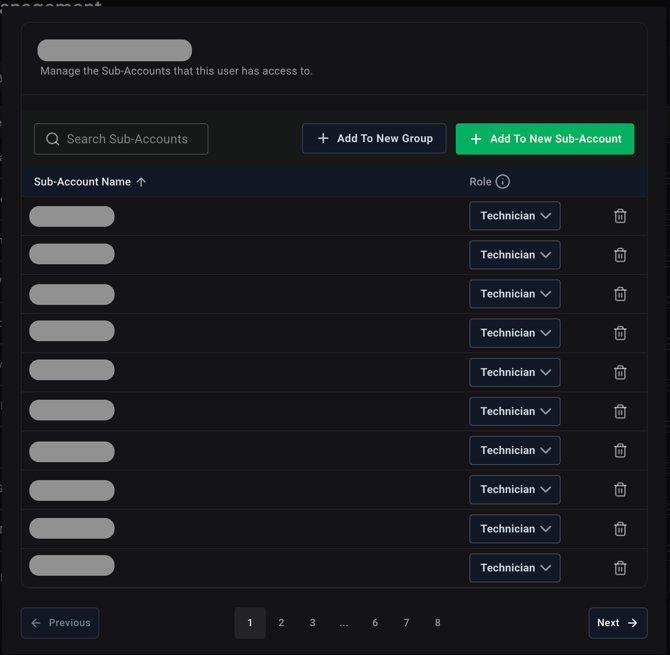
- In this dialog you can add users to groups and sub-accounts they currently are not members of, as well as adjust the roles or remove users for sub-accounts they are members of:
-
By following these steps, you can easily enable the feature for all your group accounts.